Settings and Config
Global Styles
For Touying, global styles refer to set rules or show rules that need to be applied everywhere, such as #set text(size: 20pt).
Themes in Touying encapsulate some of their own global styles, which are placed in #self.methods.init. For example, the simple theme encapsulates:
config-methods(
  init: (self: none, body) => {
    set text(fill: self.colors.neutral-darkest, size: 25pt)
    show footnote.entry: set text(size: .6em)
    show strong: self.methods.alert.with(self: self)
    show heading.where(level: self.slide-level + 1): set text(1.4em)

    body
  },
)
If you are not a theme creator but simply want to add some of your own global styles to your slides, you can easily place them before or after #show: xxx-theme.with(). For example, the metropolis theme recommends that you add the following global styles yourself:
#set text(font: "Fira Sans", weight: "light", size: 20pt)
#show math.equation: set text(font: "Fira Math")
#set strong(delta: 100)
#set par(justify: true)
Global Information
Like Beamer, Touying helps you better maintain global information through a unified API design, allowing you to easily switch between different themes. Global information is a typical example of this.
You can set the title, subtitle, author, date, institution, contact and logo information of your slides with:
config-info(
  title: [Title],
  subtitle: [Subtitle],
  author: [Authors],
  date: datetime.today(),
  institution: [Institution],
  contact: [contact\@mail.com],
  logo: [logo.png],
  extra: (supervisor:[Supervisor],),
)
You can even pass extra information, to maintain presentation information not covered by the other attributes.
Later on, you can access them through self.info.
This information is generally used in the theme's title-slide, header, and footer, such as #show: metropolis-theme.with(aspect-ratio: "16-9", footer: self => self.info.institution).
The date can accept datetime format and content format, and the date display format of the datetime format can be changed with:
config-common(datetime-format: "[year]-[month]-[day]")
Preamble
The config-common(preamble: ...) option lets you run setup code on every slide without repeating it manually. This is useful when integrating packages like codly:
#show: simple-theme.with(
  config-common(preamble: {
    codly(languages: codly-languages)
  }),
)
However you may also set this locally for individual slides, see below.
Show-Rule Config Overrides
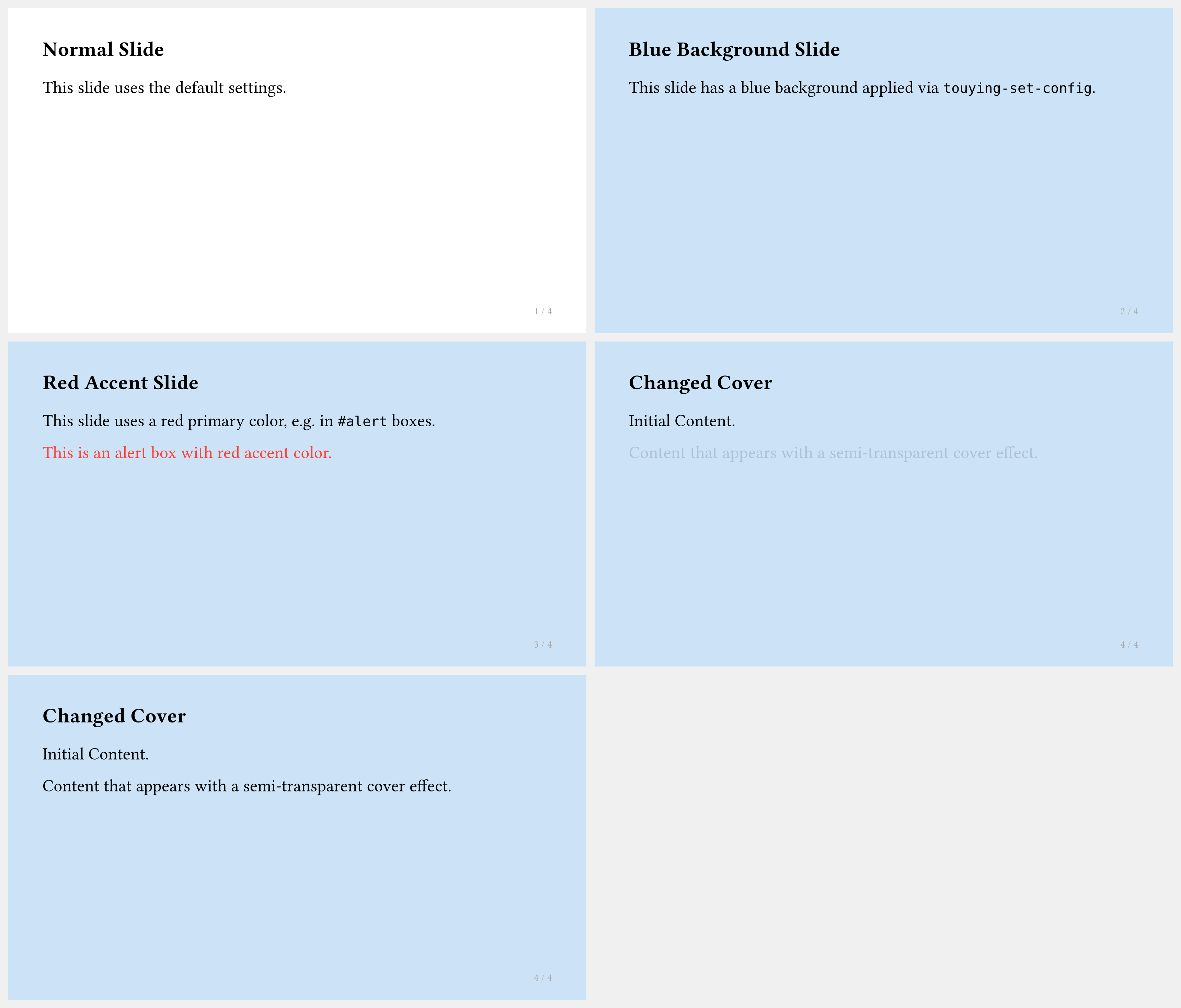
You can override any configuration for all following slides and the current one, using #show: touying-set-config.with(...), just like you would write a show/set-rule normally.
#import "@preview/touying:0.7.4": *
#import themes.simple: *

#show: simple-theme.with(aspect-ratio: "16-9")

== Normal Slide

This slide uses the default settings.


== Blue Background Slide
#show: touying-set-config.with(config-page(fill: blue.lighten(80%)))
This slide has a blue background applied via `touying-set-config`.

== Red Accent Slide
#show: touying-set-config.with(config-colors(primary: red))
This slide uses a red primary color, e.g. in `#alert` boxes.

#alert[This is an alert box with red accent color.]

== Changed Cover
#show: touying-set-config.with(config-methods(
  cover: utils.semi-transparent-cover,
))
Initial Content.

#pause

Content that appears with a semi-transparent cover effect.
Local Config Overrides
If you want to affect only one specific slide, you can set the config locally via #slide(config: ...)[...].
== Local Config
#slide(config:config-page(fill: purple.lighten(90%)))[
Only this slide has a light purple background, but the next slide goes back being light blue.
]
Deferred Config Show Rules
You may even defer a config change to the beginning of the next slide.
This is also how show: appendix works, but also useful for setting a custom preamble or similar that affects not just the slide's content. (Note that config-common has no effect, you can also write your config dict without it.)
== Content Slide
Some content.
#show: touying-set-config.with(defer:true, config-common(appendix:true))
// you can just write `show: appendix`
== Appendix
Page counter does no longer increase.
#show: touying-set-config.with(defer:true, (preamble:{codly(languages: codly-languages)}))
== Deferred Config Change
Now we have codly available.
Frozen Counters
When using animation, figure and theorem counters inside a single slide keep advancing per subslide by default. To freeze a counter (so it does not change between subslides), use:
config-common(frozen-counters: (counter(figure.where(kind: image)),))
For custom figure kinds, pass counter(figure.where(kind: "Name")) rather than the selector itself; frozen-counters expects counters. This is also useful when working with the Theorion package:
config-common(frozen-counters: (theorem-counter,))
Accessing Config Information
You can use touying-get-config to access the stored config for a slide. This will be the global config combined with any overrides you made for that slide.
Note that it is evaluated at context time and inserted into the document flow where you request it, thus it is only available as content.
Querying the Entire Config
Call touying-get-config() without arguments to get the full config dictionary. You can then access nested values using normal dictionary syntax:
#touying-get-config().info.author

#touying-get-config().common.handout
Since common fields are registered at the top level, you can access them directly:
#touying-get-config().handout // same as .common.handout
Querying by Key
Pass a dot-separated string key to retrieve a specific sub-config or value directly:
#touying-get-config("info.author")

#touying-get-config("info")  // returns the entire info sub-dict
Default Values
If the key does not exist, touying-get-config will panic by default. To provide a fallback value instead, use the default parameter:
#touying-get-config("random.dict.value", default: "default value")
Accessing Custom Config
If you set custom keys via touying-set-config, they become available immediately after the show rule:
#show: touying-set-config.with((random: (dict: (value: 123))))

#touying-get-config("random.dict.value")  // displays "123"
When accessing custom config, you must use the string key form (touying-get-config("random.dict.value")) rather than chaining dictionary access (touying-get-config("random.dict").value), because the latter attempts to access .value on a content element, which will fail.