Sections and Subsections
Structure
Like Beamer, Touying also has the concept of sections and subsections.
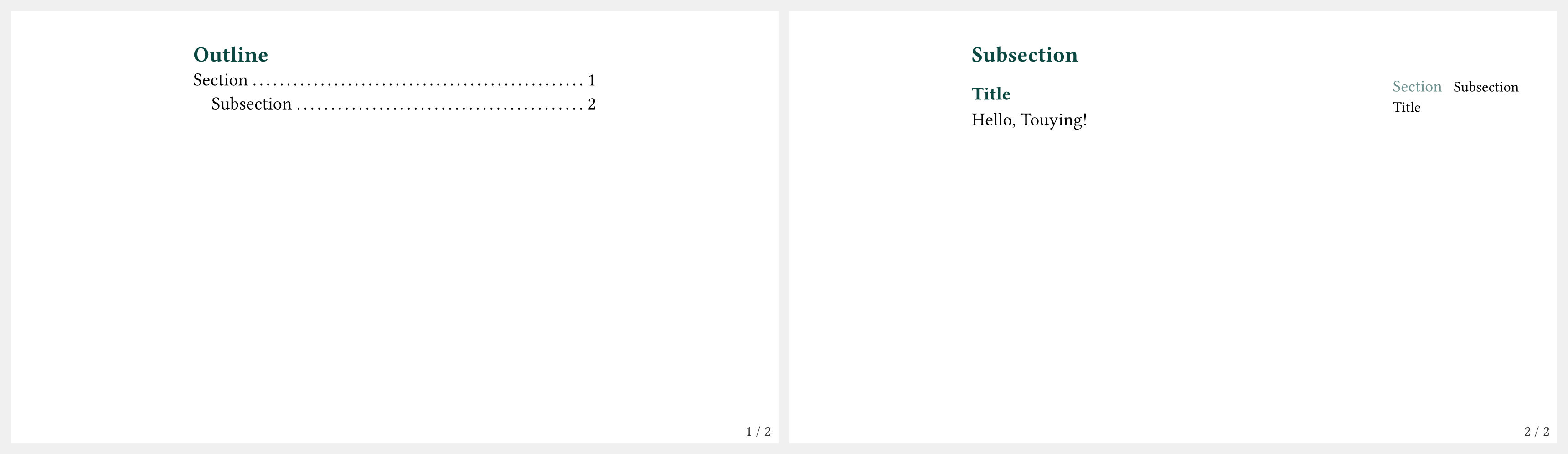
Generally, first-level, second-level, and third-level headings correspond to sections, subsections, and subsubsections, respectively, such as in the dewdrop theme.
#import "@preview/touying:0.8.0": *
#import themes.dewdrop: *

#show: dewdrop-theme.with(aspect-ratio: "16-9")

= Section

== Subsection

=== Title

Hello, Touying!
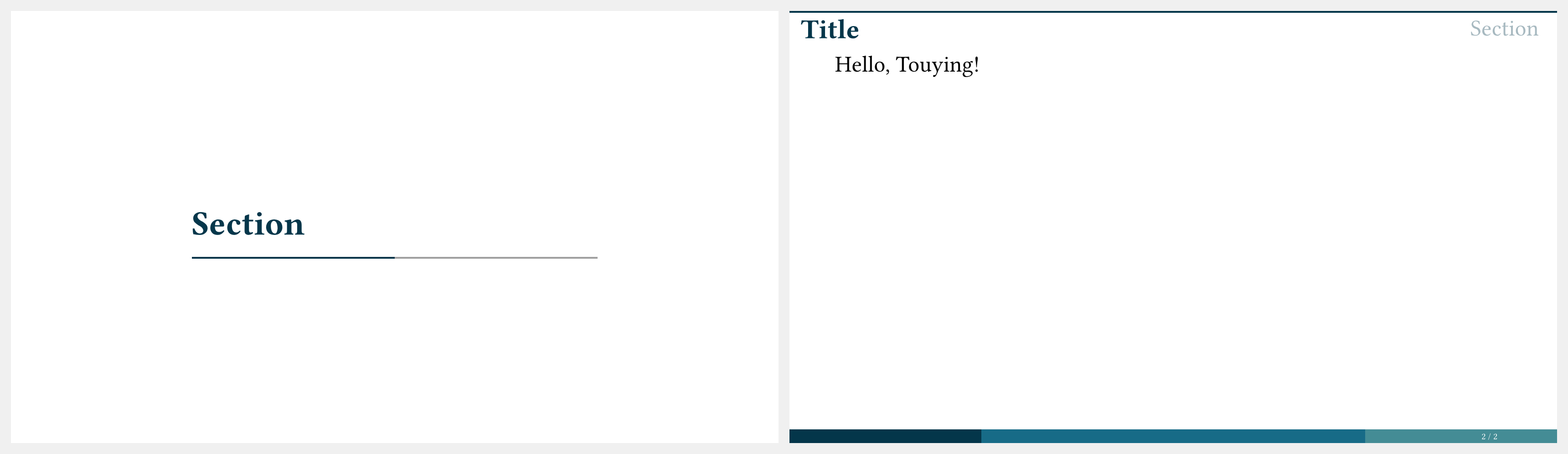
However, there are many times when we do not need subsections, so we also use first-level and second-level headings to correspond to sections and titles, respectively, such as in the university theme.
#import "@preview/touying:0.8.0": *
#import themes.university: *

#show: university-theme.with(aspect-ratio: "16-9")

= Section

== Title

Hello, Touying!
In fact, we can control this behavior through the slide-level parameter of the config-common function. slide-level represents the complexity of the nesting structure, starting from 0. For example, #show: university-theme.with(config-common(slide-level: 2)) is equivalent to both section and subsection creating new slides; while #show: university-theme.with(config-common(slide-level: 3)) is equivalent to section, subsection, and subsubsection all creating new slides.
Numbering
To add numbering to sections and subsections, we simply use
#set heading(numbering: "1.1")
#show heading.where(level: 1): set heading(numbering: "1.")
This sets the default numbering to 1.1, and the section corresponds to the numbering 1..
Table of Contents
Displaying a table of contents in Touying is straightforward:
#import "@preview/touying:0.8.0": *
#import themes.simple: *
#import "@preview/numbly:0.1.0": numbly

#set heading(numbering: numbly("{1}.", default: "1.1"))

#show: simple-theme.with(aspect-ratio: "16-9")

= Section

== Subsection

#components.adaptive-columns(outline(indent: 1em))
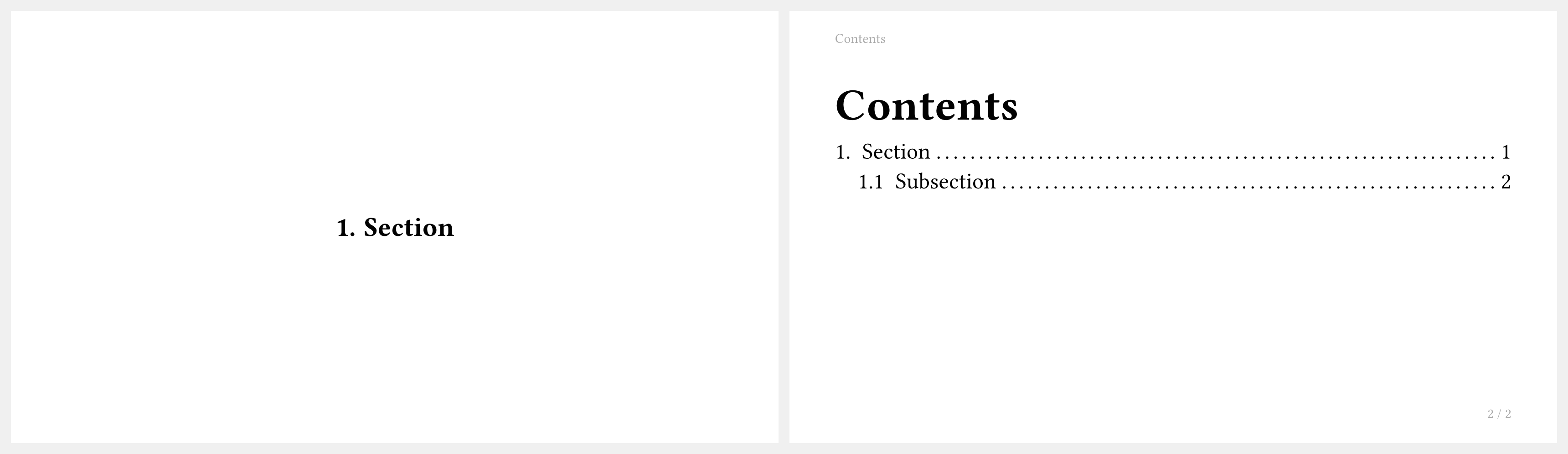
The outline(indent: 1em) is a native Typst function for the table of contents. The #components.adaptive-columns() function ensures that the table of contents occupies only one page, adapting by setting #columns(1, body) or #columns(2, body), and so on.
If you need a outline function that can display the current progress, you might consider using #components.progressive-outline() or #components.custom-progressive-outline(), as seen in the dewdrop theme. Or write your own by manipulating the outline.entry elements, for certain effects you may want to use #utils.section-relationship.
Special Heading Labels
Touying recognises special labels on headings to control slide behavior. They fall into two groups: labels that change how the heading itself is presented, and labels that filter content by output mode.
Presentation of the Heading Itself
These labels affect only the heading. They do not make the slide disappear: the content under the labelled heading is still rendered as a normal slide and still advances the slide counter.
| Label | Effect |
|---|---|
<touying:skip> | The heading does not create a new-section slide. The heading itself is still rendered and still numbered. |
<touying:hidden> | Like skip, no new-section slide is created, and in addition the heading is given numbering: none, outlined: false and bookmarked: false — so it is unnumbered, excluded from outline() and generates no PDF bookmark. |
<touying:unnumbered> | Sets numbering: none on the heading, so it takes no heading number. Unrelated to the slide counter. |
<touying:unoutlined> | The heading is excluded from the outline(). |
<touying:unbookmarked> | No PDF bookmark is generated for this heading. |
<touying:hidden> does not suppress the slide. A heading carrying it produces no section slide, but the content beneath it is still an ordinary slide and still occupies a slide number. Likewise <touying:unnumbered> only affects heading numbering; it does not stop the slide counter from incrementing. To keep a slide out of the counter entirely, use config-common(freeze-slide-counter: true).
Filtering by Output Mode
A second group of labels filters by output mode. When a label does not match the current mode, the whole thing it is attached to — the slide under the heading, or a labelled #slide[..] block — is skipped:
| Label | Effect |
|---|---|
<touying:presentation> | Rendered only in presentation mode (handout: false). |
<touying:handout> | Rendered only in handout mode (handout: true). |
<touying:slides> | Rendered only in slides output; shorthand for <touying:presentation-handout>. |
<touying:article> | Rendered only in article mode. |
<touying:never> | Never rendered, in any output mode. |
These keywords can be combined with hyphens, and combining them means "or": <touying:handout-presentation> (equivalent to <touying:slides>) or <touying:presentation-article> (rendered in presentation mode and in article mode, skipped in handout mode).
<touying:never> is the exception: it is the empty mode list, and thus <touying:never-presentation> is not a keyword, but an actual label.
Use it to park a slide you are not ready to cut: a draft, an alternative version, or a section you want out of every build without commenting out markup that contains #pause or labels.
The label can be put either on a heading or on a whole slide:
== Only in the handout <touying:handout>

#slide[Only in the presentation] <touying:presentation>
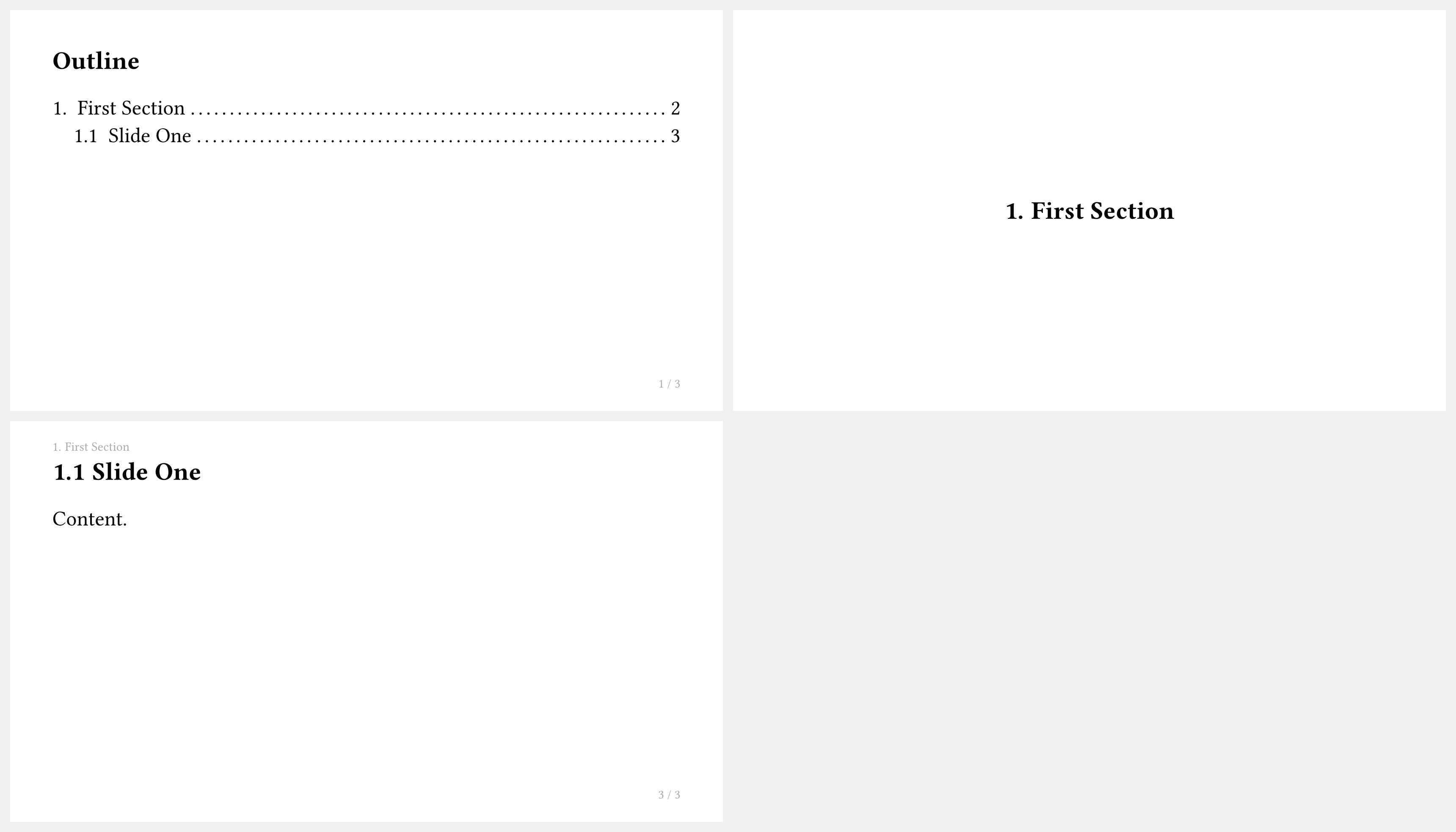
Example — <touying:hidden> keeps the outline slide's heading out of the numbering, the outline and the PDF bookmarks (the slide itself is still rendered):
#import "@preview/touying:0.8.0": *
#import themes.simple: *
#import "@preview/numbly:0.1.0": numbly

#set heading(numbering: numbly("{1}.", default: "1.1"))

#show: simple-theme.with(aspect-ratio: "16-9")

== Outline <touying:hidden>

#components.adaptive-columns(outline(title: none, indent: 1em))

= First Section

== Slide One

Content.
Appendix
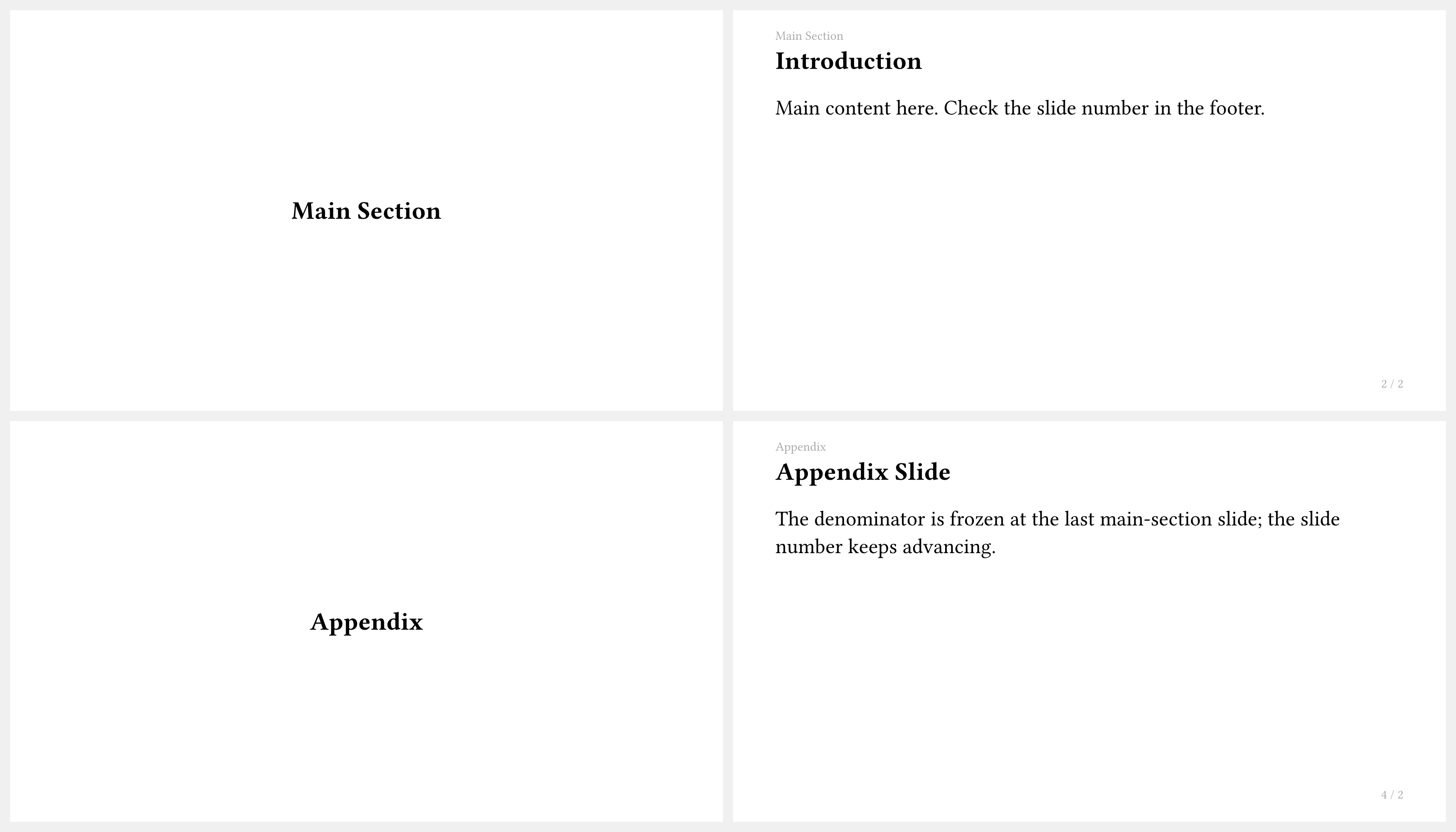
The appendix function freezes the denominator — utils.last-slide-number, the total slide count — so appendix slides do not change the total shown in the footer. The slide counter utils.slide-counter keeps advancing, so a footer in the appendix reads something like 4 / 2.
If you want the slide number itself to stop advancing too, use config-common(freeze-slide-counter: true) instead.
#import "@preview/touying:0.8.0": *
#import themes.simple: *

#show: simple-theme

= Main Section

== Introduction

Main content here. Check the slide number in the footer.

#show: appendix

= Appendix

== Appendix Slide

The denominator is frozen at the last main-section slide; the slide number keeps advancing.