Speaker Notes
A speaker note is content meant for you, not for the audience. You write it inline, next to the slide it belongs to, and Touying keeps it out of the slides themselves.
#import "@preview/touying:0.8.0": *
#import themes.simple: *
#show: simple-theme

== Photosynthesis

#align(horizon+center, text(size: 2em)[Light in, sugar out.])

#speaker-note[
  - Recap respiration from the previous section.
  - Time check: we should be at the 10 minute mark.
]
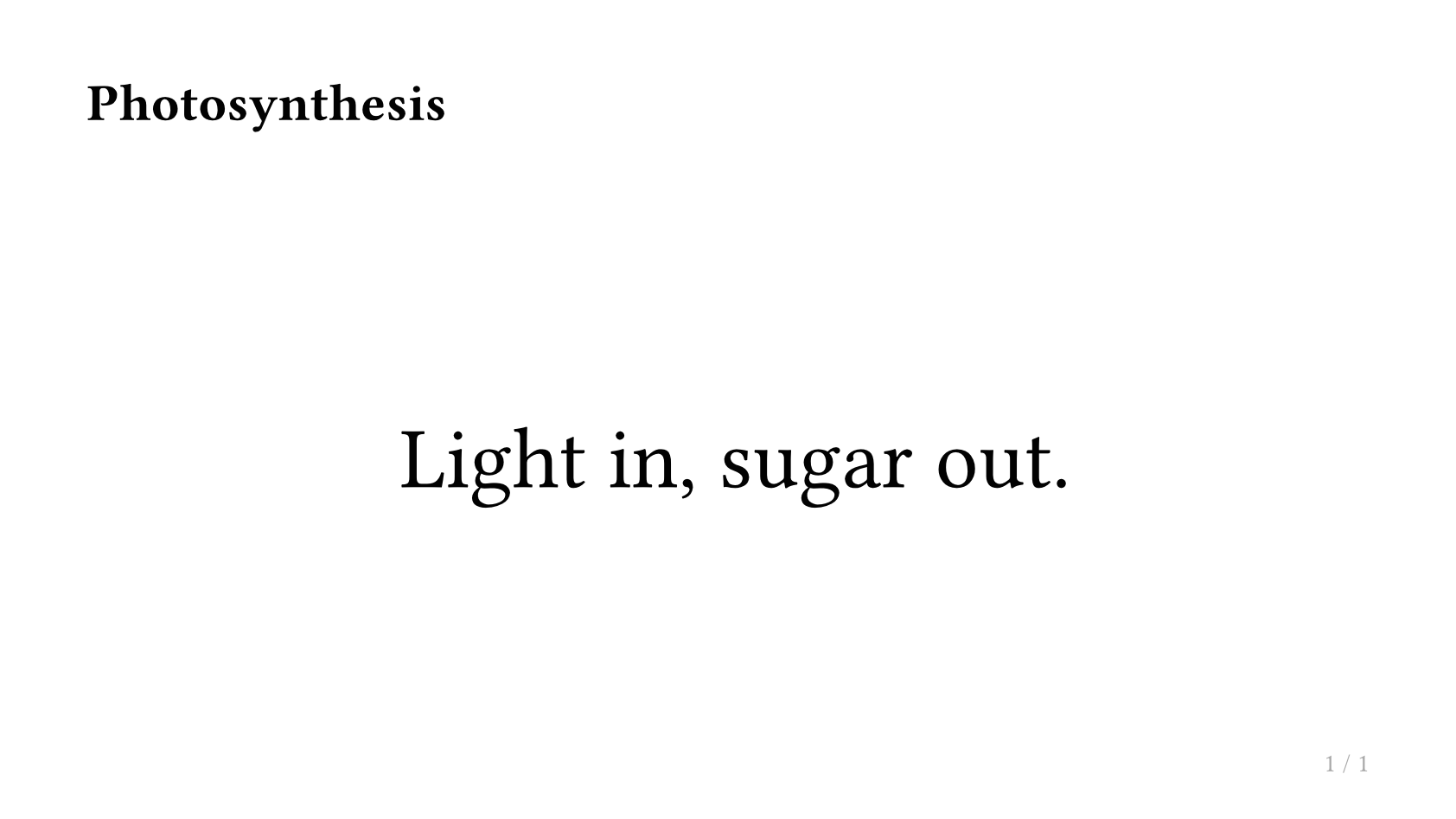
The note leaves no trace on the slide. And you may write multiple speaker-note[]s per slide, they will be collected automatically into one notes-slide.
Speaker notes exist mainly to feed a presenter tool — the two Touying is set up for are pdfpc and pympress. Which of the mechanisms below you want depends on which presenter you use.
Where notes go
A note has three possible destinations, and they are independent — you can use one, two, or all three from the same document.
| destination | how to enable | what reads it |
|---|---|---|
| pdfpc file | on by default (enable-pdfpc: true) | pdfpc, via a .pdfpc sidecar |
| a second screen | config-common(show-notes-on-second-screen: ..) | pympress and any dual-screen viewer |
| a presenter view | config-common(show-only-notes: true) | you, or a tool that can sync two PDFs |
The first is metadata, invisible in the PDF and exportable as a .pdfpc file. The other two change what the PDF
contains, so they are choices about the visual output itself.
Second screen
show-notes-on-second-screen doubles the page along one side, e.g. to the right; and puts the notes, collected per slide, in the half that opens up. The slide keeps its own dimensions, so the left half is still a normal slide — you present that half full-screen and read the other half yourself.
#show: simple-theme.with(
  aspect-ratio: "16-9",
  config-common(show-notes-on-second-screen: right),
)
top, bottom, left and right are all accepted. The default is none which shows no notes on any side.
This is the layout pympress expects: it shows the slide half on the projector and the notes half on your screen, with no sidecar file involved. That page has a worked example and screenshots of the result.
A config-page(background: ..) belongs to the slide and covers only the slide's own half. The notes half is styled separately — see Styling the panel.
Presenter view
show-only-notes: true swaps what is on the page. The note becomes the page's main content, and the whole slide is shrunk into a preview in the corner.
#show: simple-theme.with(
  aspect-ratio: "16-9",
  config-common(show-only-notes: true),
)
Two things about it are easy to get wrong.
It does not drop anything. The page count is identical to a normal compile, subslides included — every page is still there, it just shows the note instead of the slide. So page 7 of your presenter export lines up with page 7 of your slides, which is what makes the two usable side by side.
It is a second export, not a mode you present from. You produce two PDFs from one source: the normal one for the projector, and a presenter one with the flag set. There is no built-in command-line switch for it, so gate it yourself if you want to avoid editing the file between compiles:
#let notes-export = sys.inputs.at("notes", default: none) != none

#show: simple-theme.with(
  aspect-ratio: "16-9",
  config-common(show-only-notes: notes-export),
)
typst compile slides.typ slides.pdf
typst compile slides.typ --input notes=true notes.pdf
Restricting a note to some subslides
By default a note follows the pause position it is written at, exactly like ordinary content: a note after #pause appears only from that subslide onward. subslide: overrides that.
// only on subslide 2
#speaker-note(subslide: 2)[Mention the caveat here.]

// on every subslide, regardless of where it sits
#speaker-note(subslide: none)[Keep an eye on the clock.]
The note body may itself contain #pause, revealing parts of the note progressively across subslides.
Markdown notes for pdfpc
pdfpc renders notes as Markdown. mode controls how Touying serialises a note into the pdfpc file — you still write ordinary Typst either way:
#speaker-note(mode: "md")[
  - a bullet
  - *bold*
]
With mode: "typ" (the default) that *bold* is written out as *bold*; with mode: "md" it becomes **bold**, which is what pdfpc expects. Headings, links and emphasis are translated the same way.
Exporting for pdfpc
With enable-pdfpc: true (the default) Touying records every note in the document's
pdfpc metadata, alongside the slide structure. Written out as a .pdfpc file next to
your PDF, that is what gives pdfpc its notes, its overlay structure and its timings.
There are two ways to produce the file — a typst eval after compiling, or
#pdfpc.bundle-assets() during a bundle export, which needs no second command. Both are
covered on the pdfpc page, along with #pdfpc.config(..) for
talk duration, a countdown and slide transitions.
That page also documents #pdfpc.speaker-note(..), the lower-level call Touying keeps
for Polylux compatibility. It writes a
raw string straight into the metadata and takes none of the arguments below, so prefer
#speaker-note[..] unless you are porting an existing deck. Both end up in the same
place: several notes on one slide are concatenated into that slide's entry.
Styling the panel
The panel that shows your notes — the second screen or the only-notes view — is drawn by the theme, through a notes function that goes in config-common(notes-fn: ..). Every bundled theme sets it, so the notes come out looking like the rest of the theme.
The default without a theme is touying-notes, which handles the layout and leaves the styling to you: header, header-fill, fill, note-setting and preview-setting. Writing one for your own theme is covered in Build Your Own Theme.