Article Mode
Article mode renders the same source file as a flowing prose document instead of a slide deck.
typst compile talk.typ talk.pdf                            # slides
typst compile --input export-mode=article talk.typ talk.pdf   # article
--input export-mode=article wins over whatever the file says, so the same source builds both outputs without editing it. If you prefer to fix the mode in the file, set it in the config:
#show: simple-theme.with(
  config-common(export-mode: "article"),
)

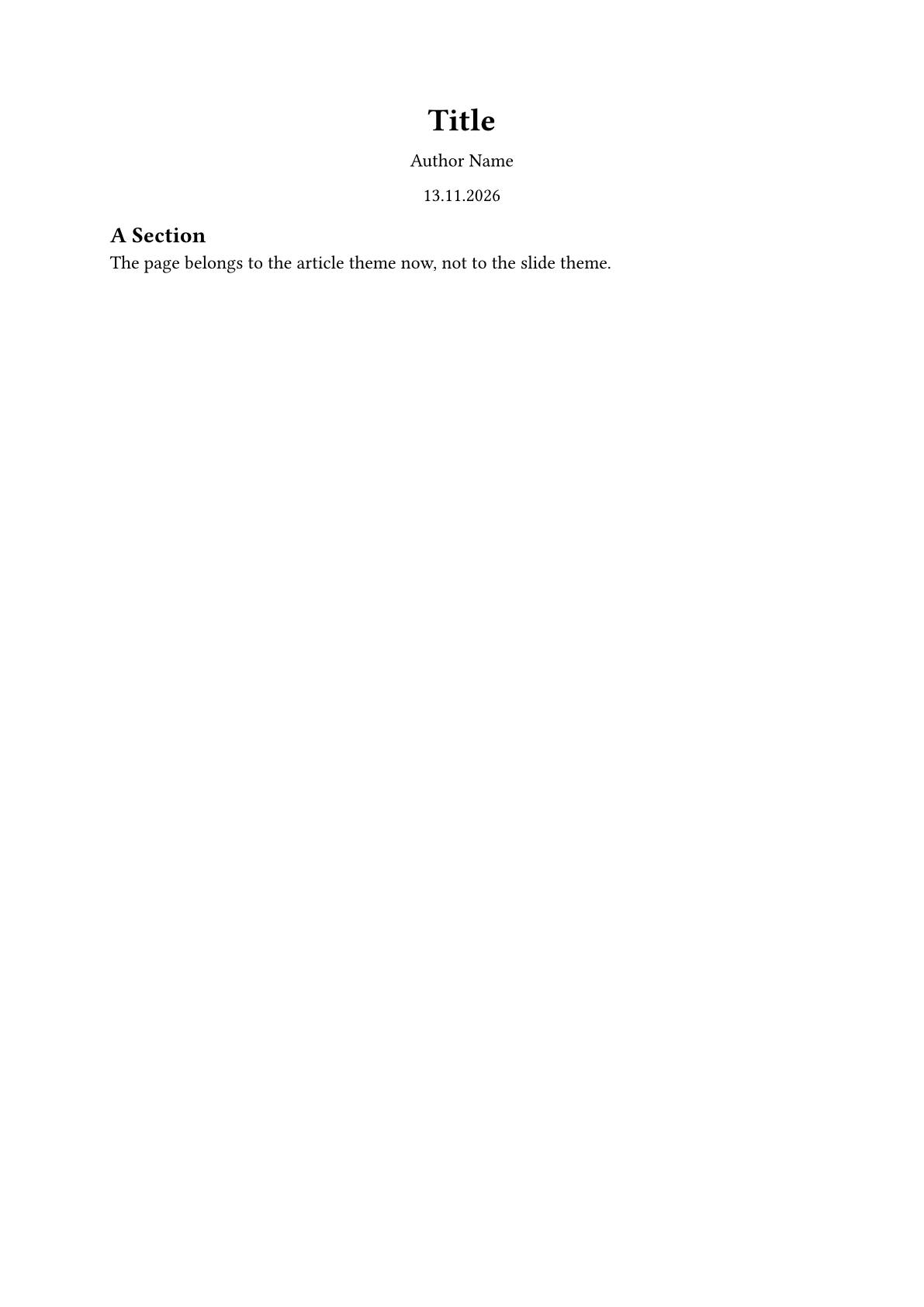
== A Section

The page belongs to the article theme now, not to the slide theme.
export-mode takes "slides", "presentation", "handout" or "article". See Output Modes for how they relate.
What changes
- No page breaks between sections. Content flows, and a heading starts a section rather than a slide.
- Animations collapse. Each slide is rendered at its final subslide, so
#pauseand#uncoverleave their content in place and covered content appears as it does at the end. - The layout and style belong to the article theme, not to the slide theme. Slide-level styling such as the header, the footer and the 16:9 page is dropped.
- Layout is linearized. A container that only arranges content is flattened into the prose, because the article is not trying to preserve the deck's layout. See Linearized layout.
#show: simple-theme.with(
  config-common(export-mode: "article"),
)

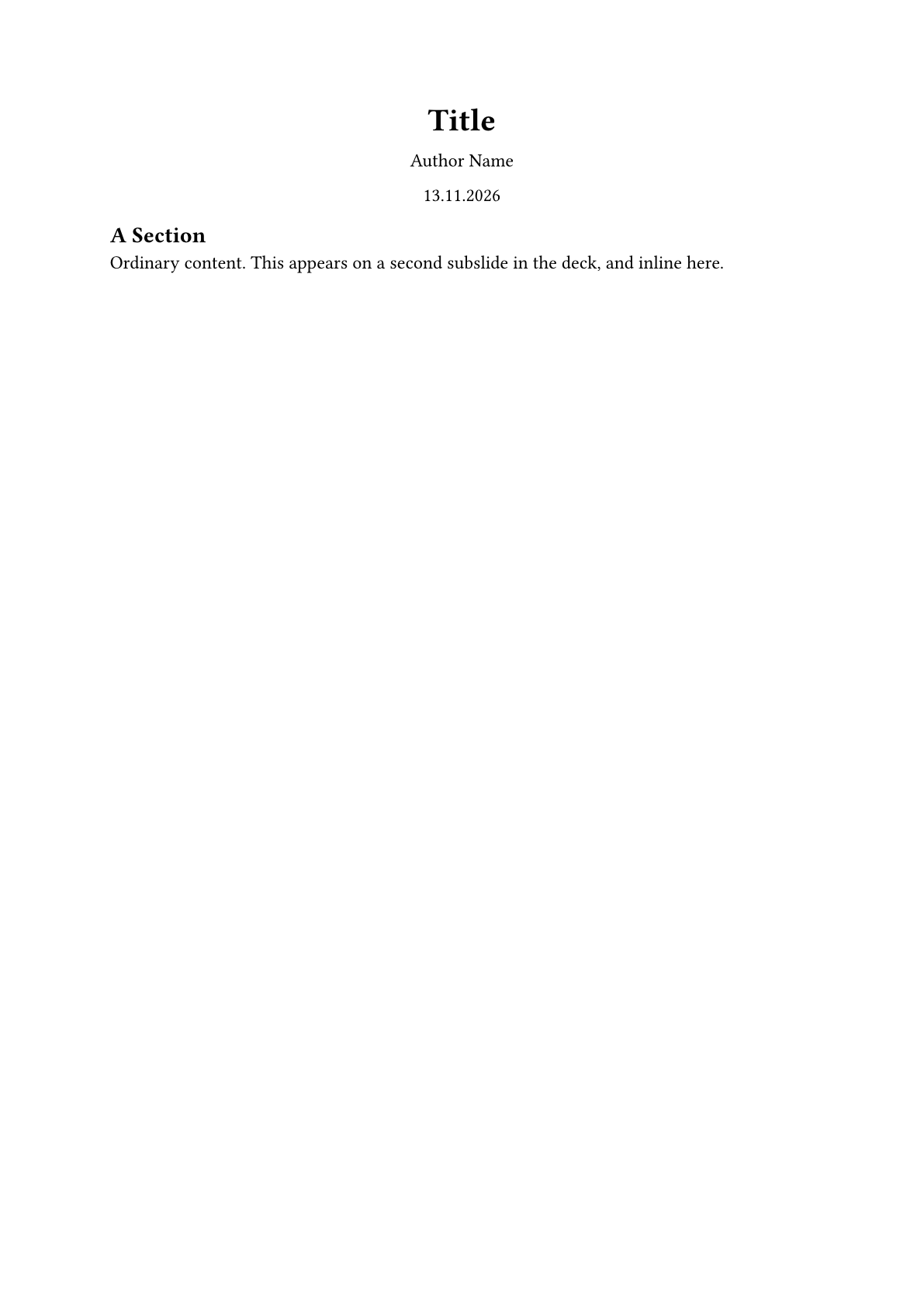
== A Section

Ordinary content. #pause This appears on a second subslide in the deck, and inline here.
Choosing an article theme
Touying ships a plain article theme and uses it by default. Any theme that takes a body works, including document themes from Universe:
#import "@preview/arkheion:0.1.0": arkheion

#show: simple-theme.with(
  config-common(export-mode: "article", article-theme: arkheion),
)

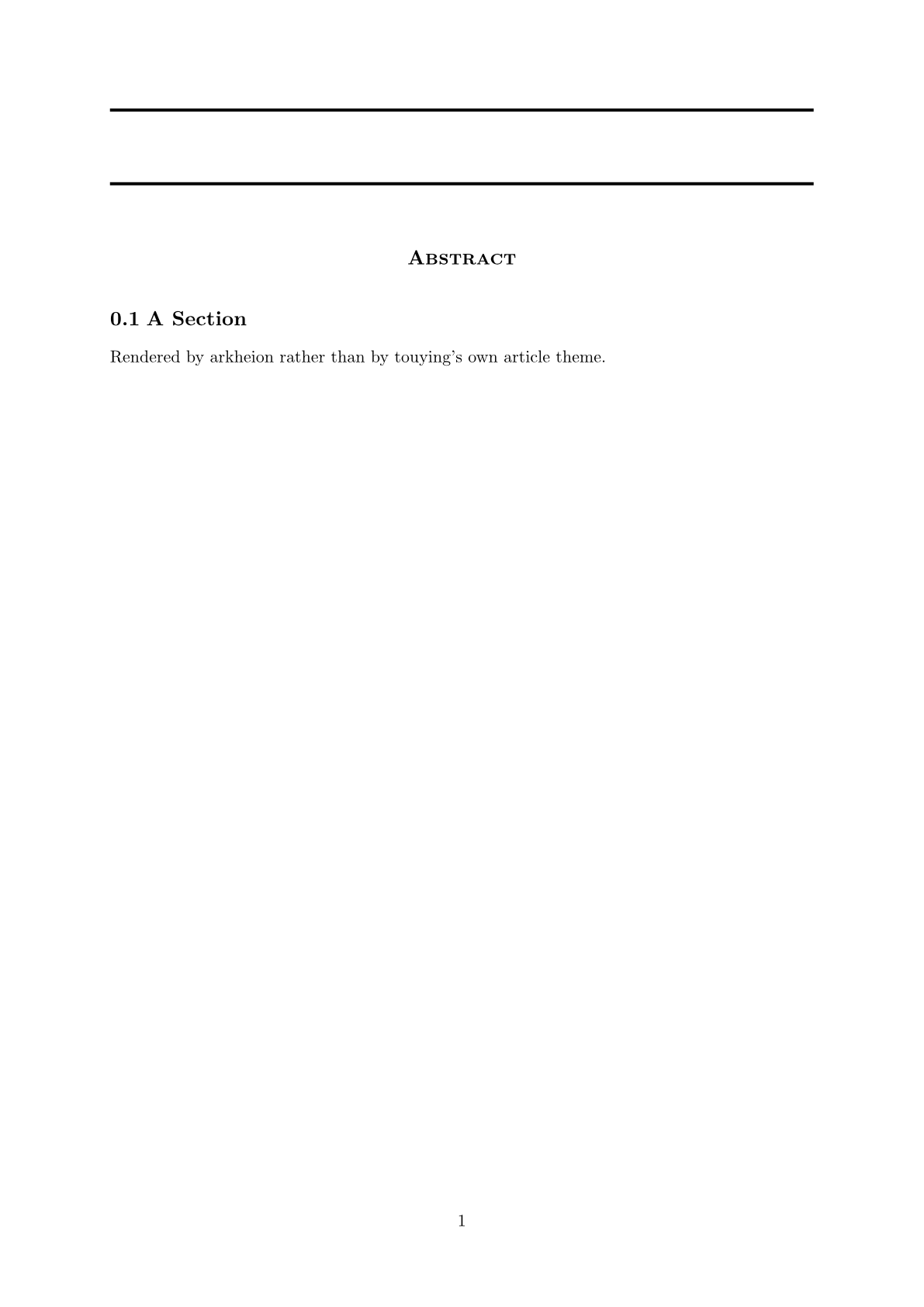
== A Section

Rendered by arkheion rather than by touying's own article theme.
The theme is a function applied to the whole article, so configure it with .with(..) when you name it:
#import themes.article: article-theme

#show: simple-theme.with(
  config-common(
    export-mode: "article",
    article-theme: article-theme.with(numbering: "1.1"),
  ),
)

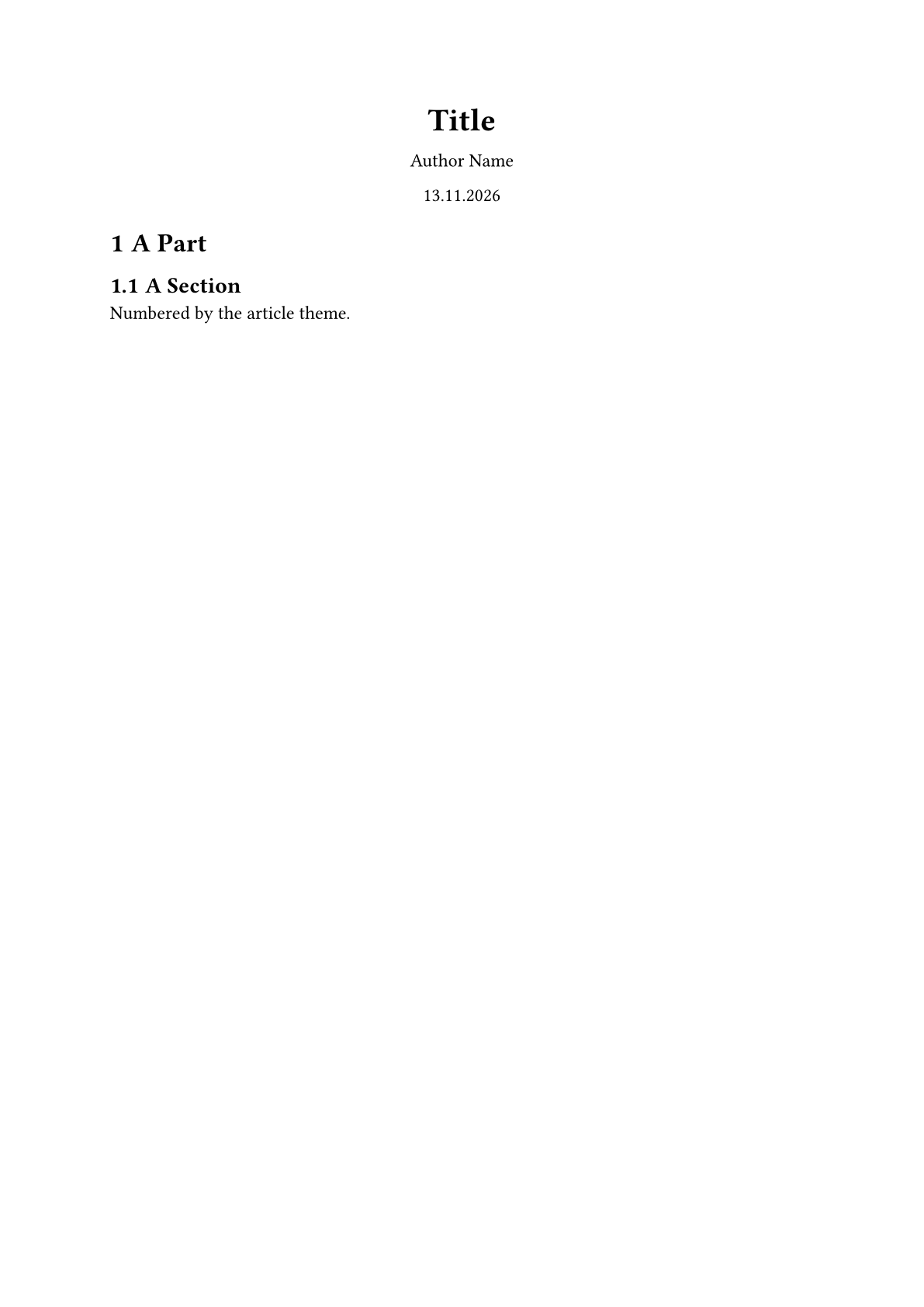
= A Part

== A Section

Numbered by the article theme.
Passing your slide metadata to it
An article theme usually wants a title and an author of its own. config-article(available-fields: ..) maps entries from your touying config onto the theme's parameters, so you write them once in config-info or elsewhere:
#import "@preview/arkheion:0.1.0": arkheion

#show: simple-theme.with(
  config-info(title: [Projection], author: [A. Author]),
  config-common(export-mode: "article", article-theme: arkheion),
  config-article(available-fields: (title: "info.title")),
)

== A Section

The title above came from `config-info`.
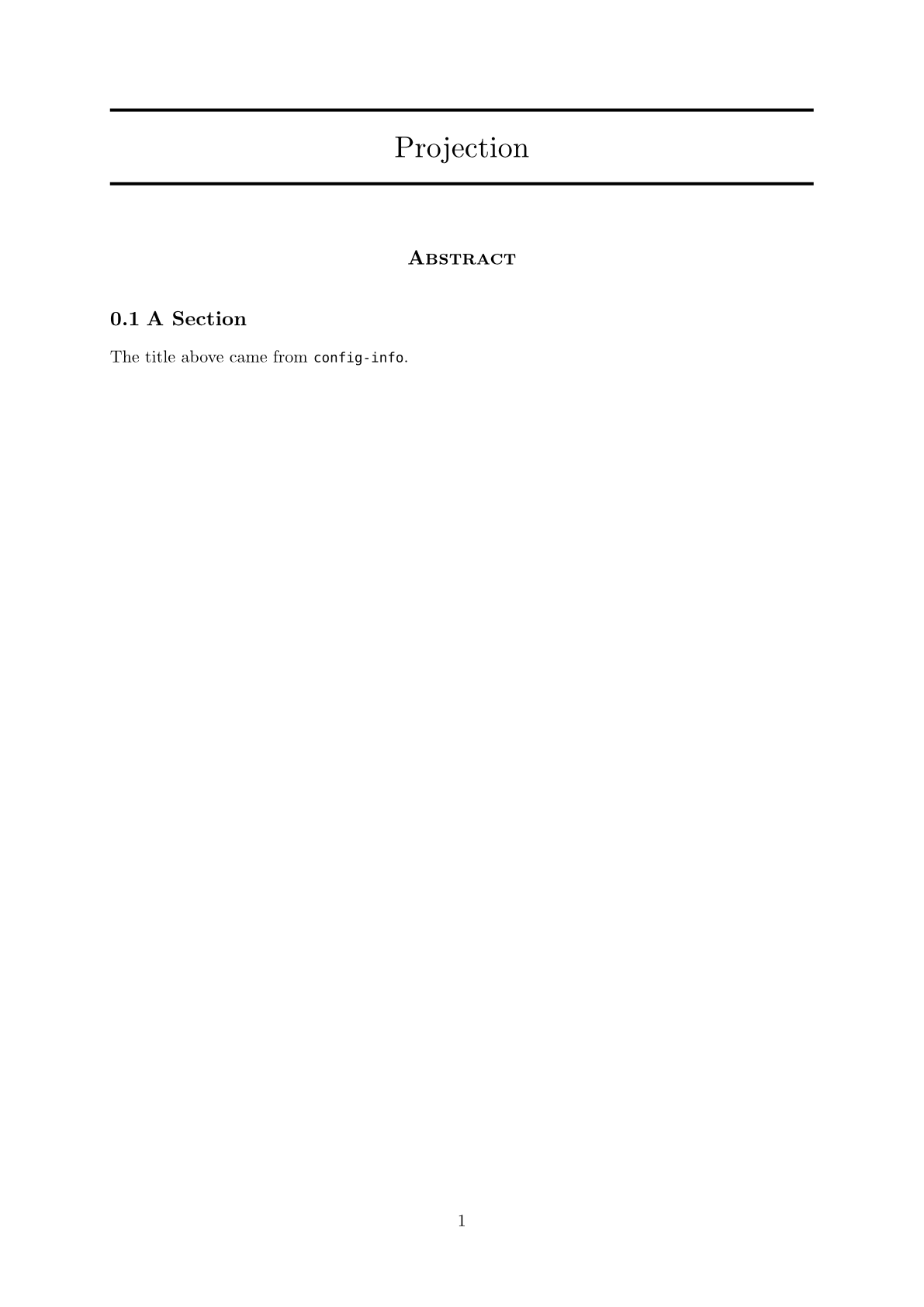
The key is the theme's parameter name, the value is a path into the touying config. Only list fields the theme accepts, and only where the types line up: arkheion's authors wants an array of dictionaries, so handing it config-info's author fails with element text has no method map. Check the theme's signature first.
If the theme has no title block of its own, either give config-article(title-block-fn: ..) a function that returns one, or write one yourself in an #article-only[..] block before the first slide.
Writing for both outputs
Because you may want to write slightly different things for each output target, you can select what goes in each with three functions. They are covered in full in Output Modes; in short:
#article-only[..]adds content that exists only in the article. Even slide-breaking elements like headings or "---" can be used in here.#slides-only[..]shows content only when outputting slides.#article-text[..]replaces the slide it is written in with prose. One per slide.
#article-text is the interesting one. Bullet points that work on a slide usually read badly in a document, so write the prose version next to them and let each output take what it needs:
#show: simple-theme.with(
  config-common(export-mode: "article"),
)

== Why This Matters

- terse
- bullet
- points

#article-text[
  In the article this paragraph stands in for the bullet points above, which
  never reach the page.
]
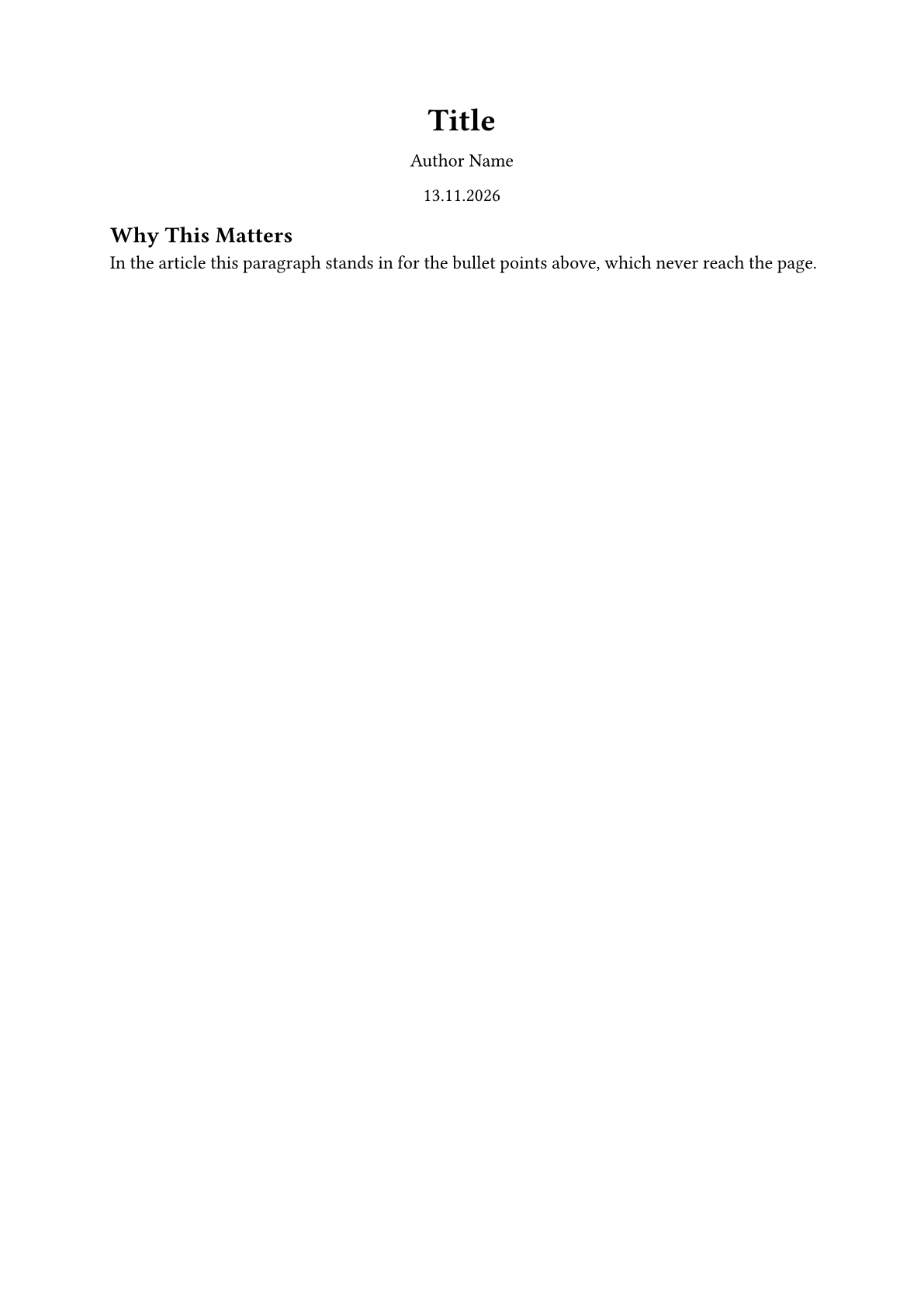
It replaces the whole slide it is written in, so it works the same whether the slide came from a heading or from an explicit #slide[..] call. Where you write it does not matter: above the content it replaces, below it, or in the middle. Only one #article-text[..] block per slide is allowed.
A slide here is a heading no deeper than slide-level (= and == by default), so a === under it is content inside the slide and is replaced along with the rest. A bare --- is ignored: it is a slide separator, and the article drops it. A #pagebreak() is the one thing that does divide a slide, because the article breaks there as well. If your section uses #pagebreak() instead of --- you may thus use one article-text for each part. Inside #article-text[..] or #article-only[..] a --- is kept, because nothing in those bodies can break a slide.
Recalling animated content
An animated diagram is one slide with several subslides, and the article renders only the last. When the intermediate stages carry the argument, #touying-recall puts a chosen one back into the prose:
#import "@preview/cetz:0.4.2"
#let canvas = touying-reducer.with(
  reduce: cetz.canvas,
  cover: cetz.draw.hide.with(bounds: true),
)

== The Construction
#canvas(label: "fig", {
  import cetz.draw: *
  rect((0, 0), (4, 3))
  (pause,)
  circle((2, 1.5), radius: 0.8)
}, length: 20pt)

#article-text[
  First the frame is fixed:
  #touying-recall(<fig>, subslides: 1)

  Then the inscribed circle follows:
  #touying-recall(<fig>, subslides: 2)
]
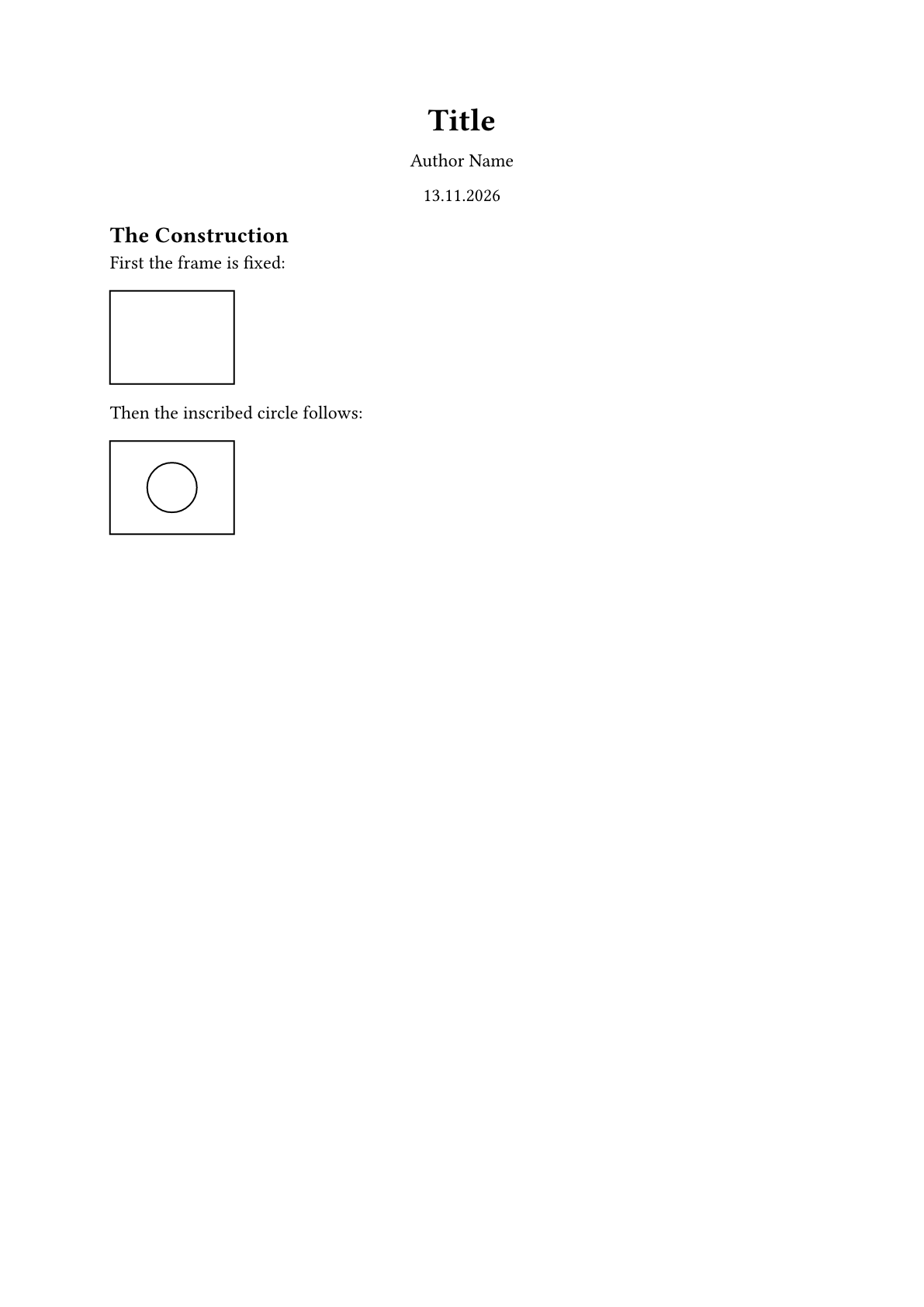
subslides picks the stage. Pass base: when the recall is not the first thing on its slide, since the stage numbers are counted from the enclosing flow.
See the documentation of the function for more details. Another similar function is touying-render which takes in content and renders it at a subslide.
Linearized layout
An article is one column of prose, so a container that exists only to arrange things on a slide should get flattened into that flow. The slide composer, #columns(..) and components.side-by-side[..][..] by default all get linearized.
A table or grid is different, because it may carry meaning via its structure. By default touying takes a declared header or footer as proof of structural meaning: with one, the table keeps its structure; without one, it is treated as a layout device and is flattened. components.cols and side-by-side internally build a grid but don't declare a header, which is why they linearize.
== Two Ways To Use A Table

#components.side-by-side[Left half.][Right half.]

#table(
  columns: 2,
  table.header([Element], [Kept]),
  [with a header], [yes],
  [without one], [no],
)
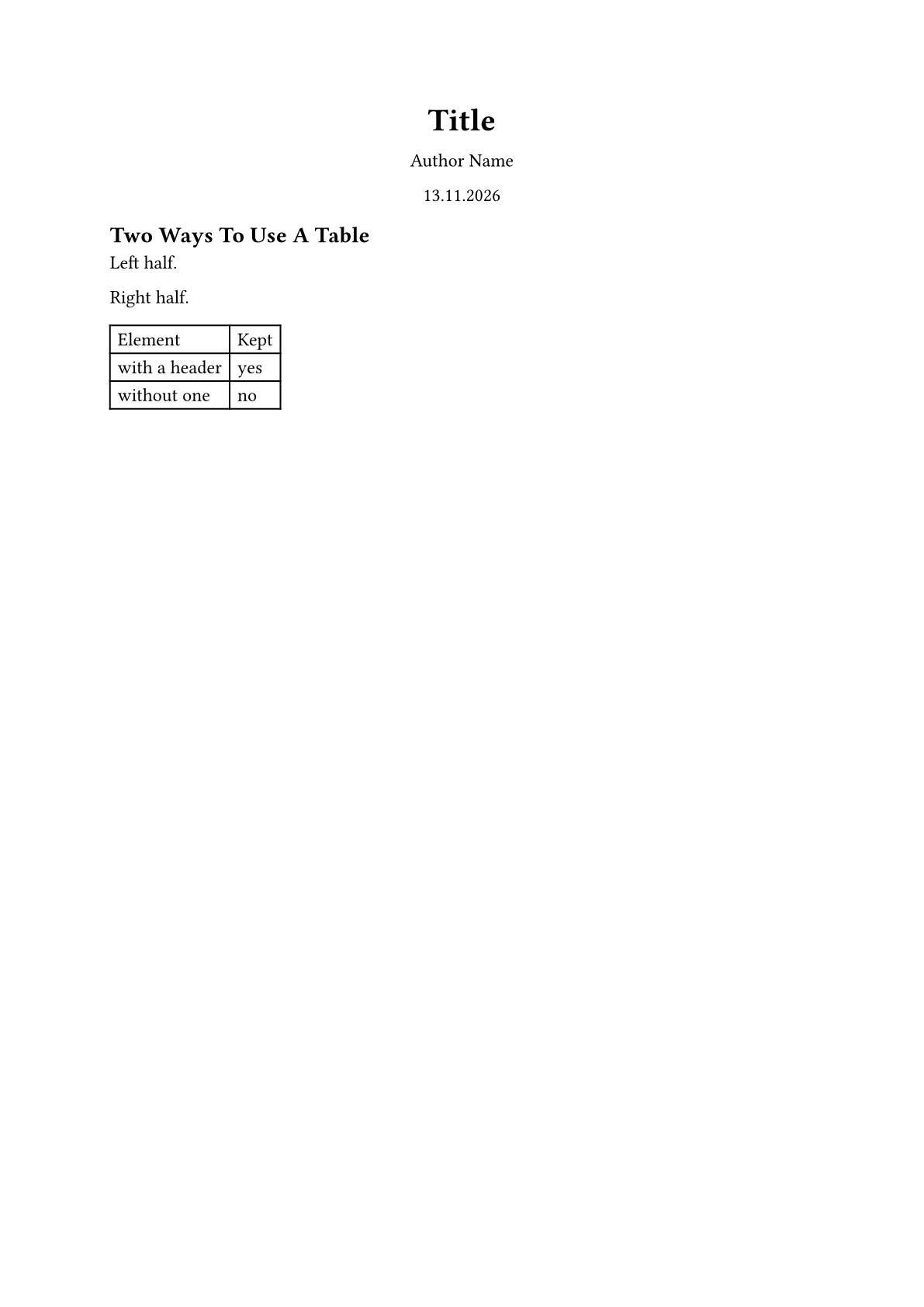
config-article(linearize: ..) allows you to customize this behaviour. auto is the default described above, true and false force it generally, and a dict sets it for each element function ("columns", "grid", "table") individually. For "columns" an auto simply means true, since a #columns(..) never carries structure of its own.
A figure's body is never flattened as its caption gives its layout meaning.
#show: simple-theme.with(
  config-article(linearize: (table: false, grid: auto, columns: true)),
)
#article-linearize[..] and #article-keep-layout[..] allow you to override the global config per element.
#article-linearize[#components.side-by-side[left][right]]

#article-keep-layout[#table(columns: 2, [a], [b]) <tab:x>]
Note that content inside #article-only or #article-text is always kept as written, and the above markers panic when written inside.
Floating Blocks to the Side
To improve reading flow, Touying can wrap images to one side via config-article(wrap: ..).
Figures and tables that are not wrapped are centered at the bottom of the parent section. To place one in the text flow, use article-only/article-text instead. All other blocks (including images) remain where the linearizer places them in the text flow.
#show: simple-theme.with(
  config-common(export-mode: "article"),
  config-article(wrap: (
    width: 50%,     // how much of the text width a float takes
    align: right,   // which side it goes to
    image: true,    // raw images, on by default
    table: false,
  )),
)
You may specify width and align once globally and decide whether to use wrapping per element function: table, image, figure, and so on.
As a top-level shorthand, wrap: false disables wrapping entirely, while wrap: true wraps every extractable candidate with the default width and alignment.
You may also override these global defaults per element function:
config-article(wrap: (
  image: (align: right, width: 30%),
  table: (align: left, width: 45%),
))
You may also specify more complicated element selections. Sadly typst selectors don't work for this, which is why you must specify a predicate instead.
config-article(wrap: (
  image: true,
  overrides: (
    // a figure holding an image floats; one holding a table does not
    (target: el => el.func() == figure and el.body.func() == image,
     align: left, width: 35%),
  ),
))
Note that the predicate sees the content tree, where a figure's kind is still auto, so ask about el.body.func() rather than el.kind.
A graphic drawn by a package such as cetz or fletcher is context content by the time the article collects its floats. touying-reducer therefore marks its own output with the function that drew it (e.g. cetz.canvas), and graphic-marker-of builds the matching predicate:
#import "@preview/cetz:0.4.2"

config-article(wrap: (
  overrides: (
    (target: graphic-marker-of(cetz.canvas), align: left, width: 40%),
  ),
))
A diagram that is not animated never goes through a reducer, so mark it yourself with #graphic-marker(cetz.canvas, ..) and the same predicate will find it. The mark is invisible and is taken out again before anything is rendered, in both outputs.
Wrapping is done with meander, which is only loaded for sections that really have something to wrap.
Things worth knowing
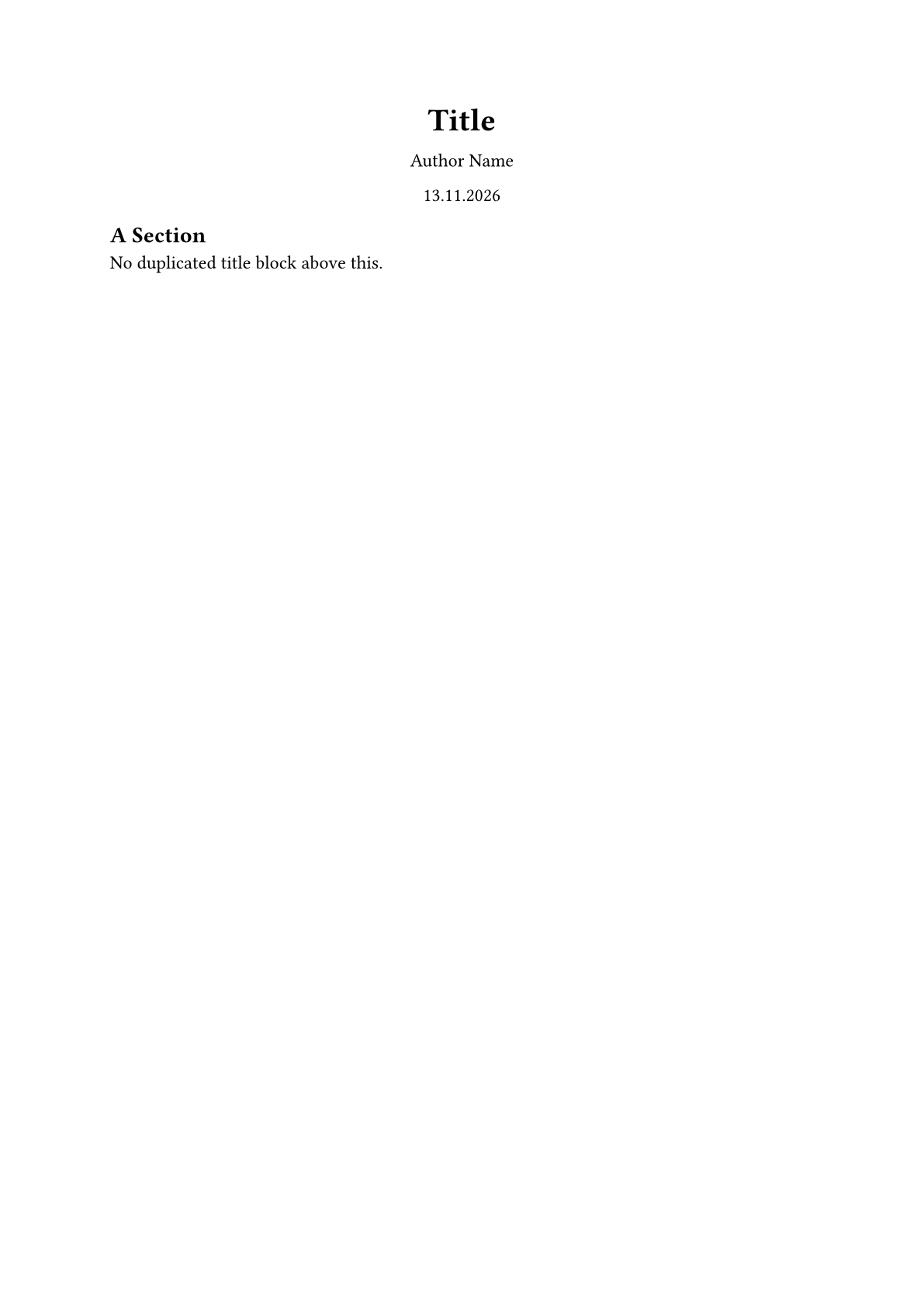
A title slide renders inline. #title-slide(..) is a slide like any other, so in the article it appears as well and the title material shows up twice. Wrap the call to keep it out:
#slides-only(title-slide[])

== A Section

No duplicated title block above this.
Marks must be reachable. #pause, #article-text and the rest are resolved by walking the document before anything is laid out. One nested inside a #context block or a container that is measured is never reached, and the compile ends with Unsupported mark. Do not wrap them in self-counting animation functions or other #context expressions.
Speaker notes do not appear. #speaker-note[..] is for the presenter view. Use #article-only[..] for an aside that belongs in the document.