Handout Mode
Handout mode collapses all animation subslides into a single page per logical slide, making it easy to produce a printable or distributable version of your presentation.
Enabling Handout Mode
config-common(handout: true)
Place this inside your theme setup:
#import "@preview/touying:0.7.4": *
#import themes.simple: *

#show: simple-theme.with(
  aspect-ratio: "16-9",
  config-common(handout: true),
)

= Title

== Animated Slide

First item.

#pause

Second item (won't generate a separate page in handout mode).

#pause

Third item.
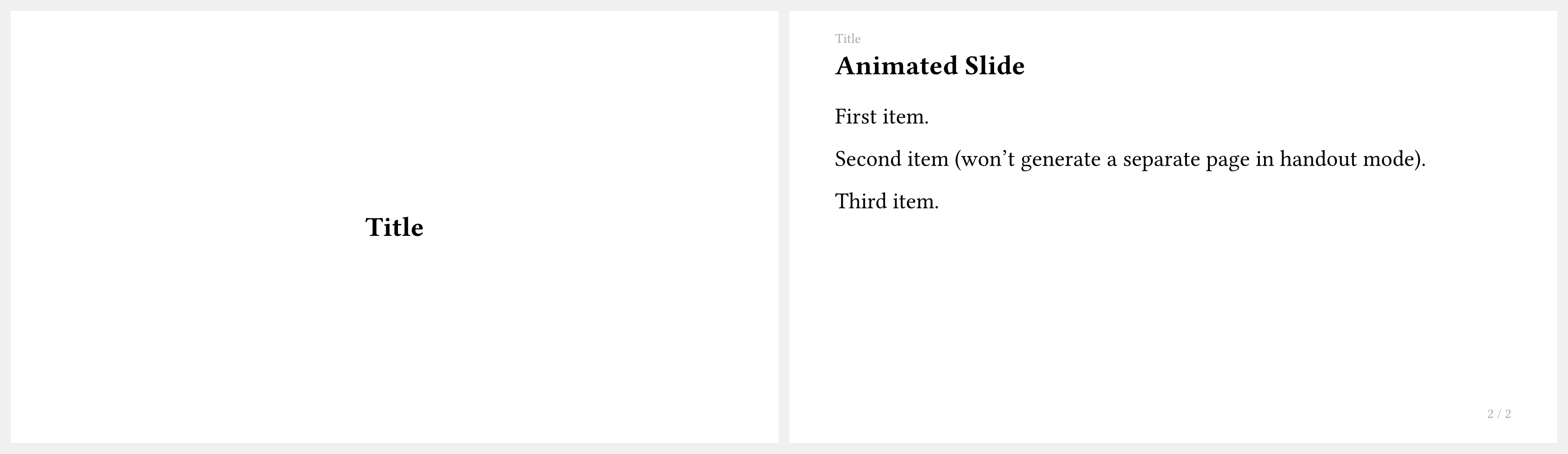
By default, handout mode keeps only the last subslide of each slide.
Choosing Which Subslide to Keep
You can choose a specific subslide (or a set of subslides) to keep in handout output with handout-subslides:
// Keep only the first subslide (useful for "before" snapshots)
config-common(handout: true, handout-subslides: 1)

// Keep the first and last subslides
config-common(handout: true, handout-subslides: (1, -1))

// Keep a range expressed as a string (same syntax as `only`/`uncover`)
config-common(handout: true, handout-subslides: "1-2")
Handout-only Slides
Use the <touying:handout> label to create slides that appear only in handout mode and are hidden during normal presentation:
== Extra Notes for Handout <touying:handout>

This slide is included when `handout: true` but invisible otherwise.
Workflow Tip
A common workflow is to keep handout: false (the default) while presenting, then switch to handout: true when exporting a PDF to share with your audience:
// During presentation
#show: my-theme.with(config-common(handout: false))

// When building the handout PDF
#show: my-theme.with(config-common(handout: true))